
What is DVI? A Comprehensive Guide to Digital Visual Interface
December ,15 ,2025
Digital Visual Interface or DVI for short is a digital video display standard and connection type that emerged as a key transition from analog to digital display technology in the computer industry. First developed by the Digital Display Working Group (DDWG) and released in 1999 it was designed to replace the aging VGA standard. It quickly became a popular choice for PCs monitors and other display devices. Even with the rise of HDMI and DisplayPort understanding DVI remains important for anyone working with computer hardware managing legacy systems or dealing with mid-2000s to 2010s display equipment.
DVI plays a pivotal role in transmitting high-quality video signals between video sources and displays. This highlights its significance in the shift from analog to digital graphics display technology.
In this comprehensive guide we will explore what DVI is how it functions its history and evolution and how it compares to more modern standards such as HDMI and DisplayPort. Whether you are a tech enthusiast an IT professional or just curious about the technology behind your computer display this article will give you a thorough understanding of DVI.
DVI stands for Digital Visual Interface. At its core it is a digital interface standard for computer video output. It defines both a display hardware specification and multiple connector types used to link video sources like computers and graphics cards to display devices such as monitors and projectors. Unlike VGA which is purely analog DVI supports both digital and analog signals depending on the variant.
Key characteristics of DVI include the following.
• Dual signal support. DVI comes in variants that handle digital signals only analog signals only or both. This flexibility made it a bridge between legacy analog systems and new digital devices.
• Connector variants. DVI has three core types with distinct pin layouts and signal support, all featuring a white connector:
1) DVI-D (digital-only): For pure digital connections, available in single-link (18 pins) or dual-link (24 pins) versions (dual-link for higher resolutions).
2) DVI-A (analog-only): Solely for analog signals (12 pins), essentially a DVI-shaped connector for VGA signals (rarely used today).
3) DVI-I (integrated): Combines digital and analog support, with 5 extra analog pins alongside digital pins (18+5 for single-link, 24+5 for dual-link). A quick way to distinguish: DVI-I has 4 small pins around the large flat pin (analog pins), DVI-D lacks these, and DVI-A only has these analog pins.
• Resolution support. Originally designed to support high resolutions. Single-link DVI can handle up to 1920x1200 pixels. Dual-link DVI extends this to 2560x1600 pixels catering to high-end displays of its era.
• Color depth. Supports up to 48-bit color depth which delivers vibrant and detailed color reproduction far beyond early VGA capabilities.
DVI technology operates by transmitting video signals in digital or analog form from devices like computers and gaming consoles to displays such as monitors and projectors. The working process varies slightly between digital and analog variants but here is a simplified breakdown.
1. The computer’s graphics card generates digital video signals which represent pixel data as binary code (0s and 1s).
2. These digital signals are sent through the DVI cable without conversion. The cable’s shielding helps protect the signal from electromagnetic interference.
3. The display device receives the digital signals and directly decodes the binary data to determine the color and brightness of each pixel.
4. Sync signals embedded within the digital data ensure the display refreshes correctly aligning each frame and line of pixels.
1. The graphics card converts digital pixel data to analog signals similar to VGA.
2. These analog signals travel through the DVI cable to the display device.
3. The display converts the analog signals back to digital form for processing and rendering.
The digital nature of DVI ensures minimal signal loss and consistent image quality over typical cable runs. Analog transmission via DVI-A or DVI-I is largely for backward compatibility with VGA-era displays.
Understanding DVI’s history helps put its importance into perspective as a transitional digital standard.
• 1999. The Digital Display Working Group (a consortium of tech companies including Intel IBM and Apple) releases the DVI standard. Its primary goal is to replace VGA and deliver high-quality digital video.
• Early 2000s. DVI gains widespread adoption in PCs and flat-panel monitors. It becomes the de facto standard for digital display connections in the computer industry.
• Mid-2000s. HDMI is introduced offering native audio support and smaller connectors. DVI remains dominant in the PC market while HDMI gains traction in consumer electronics like TVs and Blu-ray players.
• Late 2000s to 2010s. DisplayPort emerges as a more advanced digital standard with higher bandwidth and better multi-display support. DVI usage starts to decline but remains common in mid-range PCs and monitors.
• 2010s and beyond. DVI is gradually phased out in favor of HDMI and DisplayPort in new consumer devices. However it still finds use in legacy systems industrial equipment and some gaming setups. Throughout its evolution DVI saw minor updates primarily focused on improving compatibility and adding support for HDCP (High-bandwidth Digital Content Protection) to prevent unauthorized copying of copyrighted content.
While DVI has remained relatively consistent since its release here are some key specifications.
• Standard resolution (Single-link). Up to 1920x1200 pixels at 60 Hz refresh rate.
• Maximum resolution (Dual-link). Up to 2560x1600 pixels at 60 Hz refresh rate as per official specifications. Notably, some high-end graphics cards and monitors may support non-standard high resolutions like 3840×2400 (WQUXGA) at 30 Hz under specific conditions (e.g., reduced color depth or signal compression), but this is not within the standard DVI specification and varies greatly by hardware compatibility.
• Refresh rate. Supports up to 144 Hz at 1920x1080 pixels (single-link) making it popular for early gaming monitors.
• Color depth. Up to 48-bit color (16 bits per RGB channel) for exceptional color accuracy.
• Bandwidth. Single-link DVI supports up to 165 MHz bandwidth. Dual-link DVI doubles this to 330 MHz.
• HDCP support. Most modern DVI devices include HDCP 1.4 support for playback of copyrighted content like movies and games.
The DVI connector’s pin configuration varies by variant. DVI-D (digital only) has 18 pins (single-link) or 24 pins (dual-link). DVI-A (analog only) has 12 pins. DVI-I (integrated) combines both configurations with 24+5 pins (dual-link) or 18+5 pins (single-link). These variations ensure compatibility with different signal types and resolutions.
It is important to note that actual capabilities can vary depending on the specific hardware cable quality and display device.
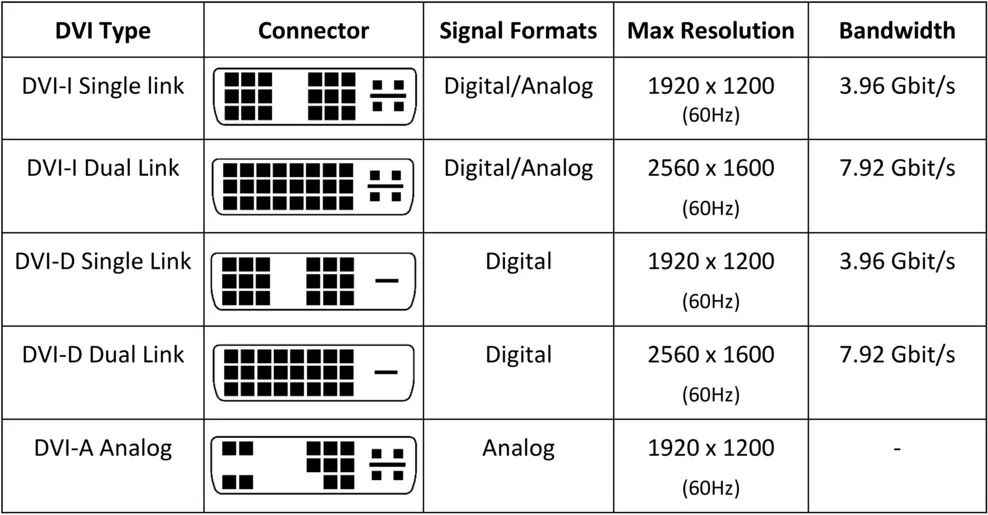
Understanding DVI’s pros and cons helps explain its role as a transitional digital standard.
• Superior image quality. Digital transmission eliminates signal degradation issues common with analog VGA.
• Dual signal support. Compatible with both digital and analog displays making it a versatile bridge technology.
• No licensing fees. Manufacturers do not need to pay royalties to use DVI reducing hardware costs.
• High resolution support. Dual-link DVI handles high-end resolutions like 2560x1600 which was ideal for professional monitors.
• Widespread legacy compatibility. Works with millions of mid-2000s to 2010s PCs monitors and graphics cards.
• No native audio support. Requires a separate audio cable for sound which is inconvenient compared to HDMI/DisplayPort.
• Bulky connector. DVI connectors are larger than HDMI and DisplayPort making them less suitable for compact devices.
• Limited modern features. Lacks support for 4K/8K resolutions HDR and other advanced features found in HDMI 2.1 and DisplayPort 2.1.
• Declining support. New consumer devices like laptops and TVs rarely include DVI ports today.
• Confusing variants. The multiple DVI types (D/D/A/I single/dual-link) can be confusing for casual users.
While DVI has been largely replaced by HDMI and DisplayPort in new consumer devices it still has uses in several areas.
• Legacy systems. Millions of older PCs monitors and graphics cards (2000s to 2010s) still rely on DVI for video output.
• Gaming setups. Some retro gaming enthusiasts and users with mid-range gaming monitors still use DVI for its reliable high-refresh-rate support at 1080p.
• Industrial and embedded systems. Many industrial displays and embedded computers use DVI due to its simplicity and long-term availability.
• Professional environments. Some older professional monitors (e.g. photo editing and CAD displays) still feature DVI ports and deliver excellent color accuracy.
Many modern graphics cards still include DVI ports or offer DVI support via adapters to maintain backward compatibility. DVI adapters are essential for connecting legacy DVI devices to new displays with HDMI or DisplayPort inputs ensuring seamless integration in mixed-technology setups.
DVI has three primary connector types, each designed for specific signal needs. You can easily tell them apart by their pin configurations and labeling (most connectors have "DVI-D/A/I" marked):
• DVI-D (Digital Only): Supports digital signals exclusively. It comes in two sub-types: Single-link (18 pins, max 1920x1200@60Hz) and Dual-link (24 pins, max 2560x1600@60Hz). No analog pins mean it can’t connect to VGA displays without an active converter. Look for "DVI-D" or "DIGITAL" on the connector.
• DVI-A (Analog Only): Transmits analog signals only (12 pins), acting as a DVI-to-VGA adapter in connector form. It’s obsolete for modern digital displays but may appear on old low-end devices. Labeled "DVI-A" or "ANALOG" on the connector.
• DVI-I (Integrated): The most versatile type, supporting both digital and analog signals. It has 5 additional analog pins around the central flat pin (18+5 for single-link, 24+5 for dual-link). It works with digital displays (via digital pins) or VGA displays (via analog pins with a DVI-I to VGA adapter). Marked "DVI-I" on the connector.
Quick visual identification tip: Check the area around the large flat pin on the connector. DVI-I has 4 small pins here (analog pins); DVI-D has no small pins (only digital pins); DVI-A has only these small pins (no digital pins). Also, dual-link variants (DVI-D/I) have more pins than single-link ones, which is visible by counting the pin holes.
No DVI does not support native audio transmission. The DVI standard was designed solely for video. If you need audio you will need a separate audio cable (e.g. 3.5mm auxiliary cable or optical cable) to connect your audio source to speakers or the display’s audio input. Alternatively use a DVI-HDMI adapter that includes an audio input to combine video and audio into a single HDMI signal.
Yes but the type of converter depends on your needs.
• DVI to HDMI. Passive adapters work for video transmission since both use digital signals. For audio you will need a separate cable or an active adapter that includes audio support.
• DVI to DisplayPort. Passive adapters work for single-link DVI (up to 1920x1200). For dual-link DVI or higher resolutions you need an active adapter.
• HDMI/DisplayPort to DVI. Passive adapters work for video (no audio). Ensure the adapter matches the signal type (digital only).
The main difference is bandwidth and maximum resolution support.
• Single-link DVI. Uses 12 data pins and supports up to 1920x1200 pixels at 60 Hz or 1920x1080 pixels at 144 Hz. Suitable for most standard monitors and TVs.
• Dual-link DVI. Uses 24 data pins (two sets of 12) doubling the bandwidth. Supports up to 2560x1600 pixels at 60 Hz or 1920x1080 pixels at 240 Hz. Ideal for high-resolution professional monitors and high-refresh-rate gaming displays.
Dual-link DVI connectors have more pins than single-link versions. A single-link DVI cable cannot support dual-link resolutions even if connected to a dual-link DVI port.
The standard transmission distance for DVI cables is limited by signal integrity. For most high-quality DVI cables the stable transmission distance is usually between 15 to 30 feet (about 4.5 to 9 meters). Beyond this range the digital signal may suffer from artifacts like ghosting or pixel distortion.
To achieve longer distances use a DVI to fiber converter. DVI over fiber extender can extend transmission to 1km or more. Alternatively convert DVI to HDMI or DisplayPort and use higher-quality digital cables which have better long-distance performance.
Your observation is accurate in terms of non-standard support, and the key lies in distinguishing between "WQUXGA resolution" and "standard 4K resolution." First, standard 4K refers specifically to 3840x2160 (UHD) or 4096x2160 (DCI 4K) resolutions with a 16:9 aspect ratio, while 3840×2400 (WQUXGA) features a 21:9 aspect ratio and is classified as an ultra-wide high-resolution standard, not part of the official 4K definition. Secondly, DVI does not support standard 4K (3840x2160/DCI 4K) at usable refresh rates (e.g., 60 Hz) due to its 330 MHz maximum bandwidth limit for dual-link versions. As for 3840×2400 (WQUXGA) @ 30 Hz, this is a non-standard support scenario: only dual-link DVI (24-pin) can potentially achieve it, and it often requires sacrificing color depth (e.g., reducing from 24-bit to 18-bit) or relying on signal compression technologies. Additionally, this support is highly dependent on hardware matching—only certain high-end graphics cards and monitors (released around the late 2010s) can achieve it, and low-quality cables or legacy devices will likely result in signal instability or failure to display. In summary, DVI’s non-standard support for WQUXGA does not equate to supporting standard 4K, and both scenarios have severe limitations that make them impractical for most daily or professional use. For reliable high-resolution support, HDMI 2.0+ or DisplayPort 1.2+ remains the optimal choice.
DVI may no longer be the cutting-edge display standard but its role as a bridge between analog VGA and modern digital standards like HDMI and DisplayPort makes it a crucial part of computing history. From its release in 1999 to its widespread adoption in the 2000s DVI revolutionized display technology by delivering crisp digital image quality and versatile compatibility.
As we have explored in this guide DVI offers superior image quality dual signal support and widespread legacy compatibility. These qualities made it the go-to standard for PC displays for over a decade. However its lack of native audio support bulky connector and limited modern features have led to its gradual replacement by more advanced standards.
Understanding DVI including its history how it works and its advantages and limitations provides valuable insight into the evolution of display technologies. Whether you are working with legacy hardware maintaining older systems or simply curious about the white port on your old monitor this knowledge will serve you well as you navigate the complex world of computer graphics and displays. Even in an era of HDMI and DisplayPort DVI’s legacy lives on in the millions of devices still in use today.
Reference:
https://en.wikipedia.org/wiki/Digital_Visual_Interface
DVI plays a pivotal role in transmitting high-quality video signals between video sources and displays. This highlights its significance in the shift from analog to digital graphics display technology.
In this comprehensive guide we will explore what DVI is how it functions its history and evolution and how it compares to more modern standards such as HDMI and DisplayPort. Whether you are a tech enthusiast an IT professional or just curious about the technology behind your computer display this article will give you a thorough understanding of DVI.
The Basics of Digital Visual Interface (DVI)
DVI stands for Digital Visual Interface. At its core it is a digital interface standard for computer video output. It defines both a display hardware specification and multiple connector types used to link video sources like computers and graphics cards to display devices such as monitors and projectors. Unlike VGA which is purely analog DVI supports both digital and analog signals depending on the variant.
Key characteristics of DVI include the following.
• Dual signal support. DVI comes in variants that handle digital signals only analog signals only or both. This flexibility made it a bridge between legacy analog systems and new digital devices.
• Connector variants. DVI has three core types with distinct pin layouts and signal support, all featuring a white connector:
1) DVI-D (digital-only): For pure digital connections, available in single-link (18 pins) or dual-link (24 pins) versions (dual-link for higher resolutions).
2) DVI-A (analog-only): Solely for analog signals (12 pins), essentially a DVI-shaped connector for VGA signals (rarely used today).
3) DVI-I (integrated): Combines digital and analog support, with 5 extra analog pins alongside digital pins (18+5 for single-link, 24+5 for dual-link). A quick way to distinguish: DVI-I has 4 small pins around the large flat pin (analog pins), DVI-D lacks these, and DVI-A only has these analog pins.
• Resolution support. Originally designed to support high resolutions. Single-link DVI can handle up to 1920x1200 pixels. Dual-link DVI extends this to 2560x1600 pixels catering to high-end displays of its era.
• Color depth. Supports up to 48-bit color depth which delivers vibrant and detailed color reproduction far beyond early VGA capabilities.
How DVI Works
DVI technology operates by transmitting video signals in digital or analog form from devices like computers and gaming consoles to displays such as monitors and projectors. The working process varies slightly between digital and analog variants but here is a simplified breakdown.
Digital Transmission (DVI-D and DVI-I digital mode)
1. The computer’s graphics card generates digital video signals which represent pixel data as binary code (0s and 1s).
2. These digital signals are sent through the DVI cable without conversion. The cable’s shielding helps protect the signal from electromagnetic interference.
3. The display device receives the digital signals and directly decodes the binary data to determine the color and brightness of each pixel.
4. Sync signals embedded within the digital data ensure the display refreshes correctly aligning each frame and line of pixels.
Analog Transmission (DVI-A and DVI-I analog mode)
1. The graphics card converts digital pixel data to analog signals similar to VGA.
2. These analog signals travel through the DVI cable to the display device.
3. The display converts the analog signals back to digital form for processing and rendering.
The digital nature of DVI ensures minimal signal loss and consistent image quality over typical cable runs. Analog transmission via DVI-A or DVI-I is largely for backward compatibility with VGA-era displays.
History and Evolution of DVI
Understanding DVI’s history helps put its importance into perspective as a transitional digital standard.
• 1999. The Digital Display Working Group (a consortium of tech companies including Intel IBM and Apple) releases the DVI standard. Its primary goal is to replace VGA and deliver high-quality digital video.
• Early 2000s. DVI gains widespread adoption in PCs and flat-panel monitors. It becomes the de facto standard for digital display connections in the computer industry.
• Mid-2000s. HDMI is introduced offering native audio support and smaller connectors. DVI remains dominant in the PC market while HDMI gains traction in consumer electronics like TVs and Blu-ray players.
• Late 2000s to 2010s. DisplayPort emerges as a more advanced digital standard with higher bandwidth and better multi-display support. DVI usage starts to decline but remains common in mid-range PCs and monitors.
• 2010s and beyond. DVI is gradually phased out in favor of HDMI and DisplayPort in new consumer devices. However it still finds use in legacy systems industrial equipment and some gaming setups. Throughout its evolution DVI saw minor updates primarily focused on improving compatibility and adding support for HDCP (High-bandwidth Digital Content Protection) to prevent unauthorized copying of copyrighted content.
DVI Specifications and Capabilities
While DVI has remained relatively consistent since its release here are some key specifications.
• Standard resolution (Single-link). Up to 1920x1200 pixels at 60 Hz refresh rate.
• Maximum resolution (Dual-link). Up to 2560x1600 pixels at 60 Hz refresh rate as per official specifications. Notably, some high-end graphics cards and monitors may support non-standard high resolutions like 3840×2400 (WQUXGA) at 30 Hz under specific conditions (e.g., reduced color depth or signal compression), but this is not within the standard DVI specification and varies greatly by hardware compatibility.
• Refresh rate. Supports up to 144 Hz at 1920x1080 pixels (single-link) making it popular for early gaming monitors.
• Color depth. Up to 48-bit color (16 bits per RGB channel) for exceptional color accuracy.
• Bandwidth. Single-link DVI supports up to 165 MHz bandwidth. Dual-link DVI doubles this to 330 MHz.
• HDCP support. Most modern DVI devices include HDCP 1.4 support for playback of copyrighted content like movies and games.
The DVI connector’s pin configuration varies by variant. DVI-D (digital only) has 18 pins (single-link) or 24 pins (dual-link). DVI-A (analog only) has 12 pins. DVI-I (integrated) combines both configurations with 24+5 pins (dual-link) or 18+5 pins (single-link). These variations ensure compatibility with different signal types and resolutions.
It is important to note that actual capabilities can vary depending on the specific hardware cable quality and display device.
Advantages and Disadvantages of DVI
Understanding DVI’s pros and cons helps explain its role as a transitional digital standard.
Advantages
• Superior image quality. Digital transmission eliminates signal degradation issues common with analog VGA.
• Dual signal support. Compatible with both digital and analog displays making it a versatile bridge technology.
• No licensing fees. Manufacturers do not need to pay royalties to use DVI reducing hardware costs.
• High resolution support. Dual-link DVI handles high-end resolutions like 2560x1600 which was ideal for professional monitors.
• Widespread legacy compatibility. Works with millions of mid-2000s to 2010s PCs monitors and graphics cards.
Disadvantages
• No native audio support. Requires a separate audio cable for sound which is inconvenient compared to HDMI/DisplayPort.
• Bulky connector. DVI connectors are larger than HDMI and DisplayPort making them less suitable for compact devices.
• Limited modern features. Lacks support for 4K/8K resolutions HDR and other advanced features found in HDMI 2.1 and DisplayPort 2.1.
• Declining support. New consumer devices like laptops and TVs rarely include DVI ports today.
• Confusing variants. The multiple DVI types (D/D/A/I single/dual-link) can be confusing for casual users.
DVI in Modern Computing
While DVI has been largely replaced by HDMI and DisplayPort in new consumer devices it still has uses in several areas.
• Legacy systems. Millions of older PCs monitors and graphics cards (2000s to 2010s) still rely on DVI for video output.
• Gaming setups. Some retro gaming enthusiasts and users with mid-range gaming monitors still use DVI for its reliable high-refresh-rate support at 1080p.
• Industrial and embedded systems. Many industrial displays and embedded computers use DVI due to its simplicity and long-term availability.
• Professional environments. Some older professional monitors (e.g. photo editing and CAD displays) still feature DVI ports and deliver excellent color accuracy.
Many modern graphics cards still include DVI ports or offer DVI support via adapters to maintain backward compatibility. DVI adapters are essential for connecting legacy DVI devices to new displays with HDMI or DisplayPort inputs ensuring seamless integration in mixed-technology setups.
What are the different types of DVI connectors and how do I tell them apart?
DVI has three primary connector types, each designed for specific signal needs. You can easily tell them apart by their pin configurations and labeling (most connectors have "DVI-D/A/I" marked):
• DVI-D (Digital Only): Supports digital signals exclusively. It comes in two sub-types: Single-link (18 pins, max 1920x1200@60Hz) and Dual-link (24 pins, max 2560x1600@60Hz). No analog pins mean it can’t connect to VGA displays without an active converter. Look for "DVI-D" or "DIGITAL" on the connector.
• DVI-A (Analog Only): Transmits analog signals only (12 pins), acting as a DVI-to-VGA adapter in connector form. It’s obsolete for modern digital displays but may appear on old low-end devices. Labeled "DVI-A" or "ANALOG" on the connector.
• DVI-I (Integrated): The most versatile type, supporting both digital and analog signals. It has 5 additional analog pins around the central flat pin (18+5 for single-link, 24+5 for dual-link). It works with digital displays (via digital pins) or VGA displays (via analog pins with a DVI-I to VGA adapter). Marked "DVI-I" on the connector.
Quick visual identification tip: Check the area around the large flat pin on the connector. DVI-I has 4 small pins here (analog pins); DVI-D has no small pins (only digital pins); DVI-A has only these small pins (no digital pins). Also, dual-link variants (DVI-D/I) have more pins than single-link ones, which is visible by counting the pin holes.
Does DVI support audio?
No DVI does not support native audio transmission. The DVI standard was designed solely for video. If you need audio you will need a separate audio cable (e.g. 3.5mm auxiliary cable or optical cable) to connect your audio source to speakers or the display’s audio input. Alternatively use a DVI-HDMI adapter that includes an audio input to combine video and audio into a single HDMI signal.
Can I convert DVI to HDMI or DisplayPort?
Yes but the type of converter depends on your needs.
• DVI to HDMI. Passive adapters work for video transmission since both use digital signals. For audio you will need a separate cable or an active adapter that includes audio support.
• DVI to DisplayPort. Passive adapters work for single-link DVI (up to 1920x1200). For dual-link DVI or higher resolutions you need an active adapter.
• HDMI/DisplayPort to DVI. Passive adapters work for video (no audio). Ensure the adapter matches the signal type (digital only).
What is the difference between single-link and dual-link DVI?
The main difference is bandwidth and maximum resolution support.
• Single-link DVI. Uses 12 data pins and supports up to 1920x1200 pixels at 60 Hz or 1920x1080 pixels at 144 Hz. Suitable for most standard monitors and TVs.
• Dual-link DVI. Uses 24 data pins (two sets of 12) doubling the bandwidth. Supports up to 2560x1600 pixels at 60 Hz or 1920x1080 pixels at 240 Hz. Ideal for high-resolution professional monitors and high-refresh-rate gaming displays.
Dual-link DVI connectors have more pins than single-link versions. A single-link DVI cable cannot support dual-link resolutions even if connected to a dual-link DVI port.
What is the maximum transmission distance for DVI cables?
The standard transmission distance for DVI cables is limited by signal integrity. For most high-quality DVI cables the stable transmission distance is usually between 15 to 30 feet (about 4.5 to 9 meters). Beyond this range the digital signal may suffer from artifacts like ghosting or pixel distortion.
To achieve longer distances use a DVI to fiber converter. DVI over fiber extender can extend transmission to 1km or more. Alternatively convert DVI to HDMI or DisplayPort and use higher-quality digital cables which have better long-distance performance.
Does DVI support 4K resolution?
Your observation is accurate in terms of non-standard support, and the key lies in distinguishing between "WQUXGA resolution" and "standard 4K resolution." First, standard 4K refers specifically to 3840x2160 (UHD) or 4096x2160 (DCI 4K) resolutions with a 16:9 aspect ratio, while 3840×2400 (WQUXGA) features a 21:9 aspect ratio and is classified as an ultra-wide high-resolution standard, not part of the official 4K definition. Secondly, DVI does not support standard 4K (3840x2160/DCI 4K) at usable refresh rates (e.g., 60 Hz) due to its 330 MHz maximum bandwidth limit for dual-link versions. As for 3840×2400 (WQUXGA) @ 30 Hz, this is a non-standard support scenario: only dual-link DVI (24-pin) can potentially achieve it, and it often requires sacrificing color depth (e.g., reducing from 24-bit to 18-bit) or relying on signal compression technologies. Additionally, this support is highly dependent on hardware matching—only certain high-end graphics cards and monitors (released around the late 2010s) can achieve it, and low-quality cables or legacy devices will likely result in signal instability or failure to display. In summary, DVI’s non-standard support for WQUXGA does not equate to supporting standard 4K, and both scenarios have severe limitations that make them impractical for most daily or professional use. For reliable high-resolution support, HDMI 2.0+ or DisplayPort 1.2+ remains the optimal choice.
Conclusion
DVI may no longer be the cutting-edge display standard but its role as a bridge between analog VGA and modern digital standards like HDMI and DisplayPort makes it a crucial part of computing history. From its release in 1999 to its widespread adoption in the 2000s DVI revolutionized display technology by delivering crisp digital image quality and versatile compatibility.
As we have explored in this guide DVI offers superior image quality dual signal support and widespread legacy compatibility. These qualities made it the go-to standard for PC displays for over a decade. However its lack of native audio support bulky connector and limited modern features have led to its gradual replacement by more advanced standards.
Understanding DVI including its history how it works and its advantages and limitations provides valuable insight into the evolution of display technologies. Whether you are working with legacy hardware maintaining older systems or simply curious about the white port on your old monitor this knowledge will serve you well as you navigate the complex world of computer graphics and displays. Even in an era of HDMI and DisplayPort DVI’s legacy lives on in the millions of devices still in use today.
Reference:
https://en.wikipedia.org/wiki/Digital_Visual_Interface